Properties
Adding and editing the venues a workspace operates, and what the plan limit does.
A property is a venue you operate — a hotel, hostel, apartment building or resort. Properties are the anchor everything else hangs off: conversations, tasks, storefronts and channels all belong to a property, and access is granted property by property. See What an organization is for how properties sit inside workspaces and organizations.
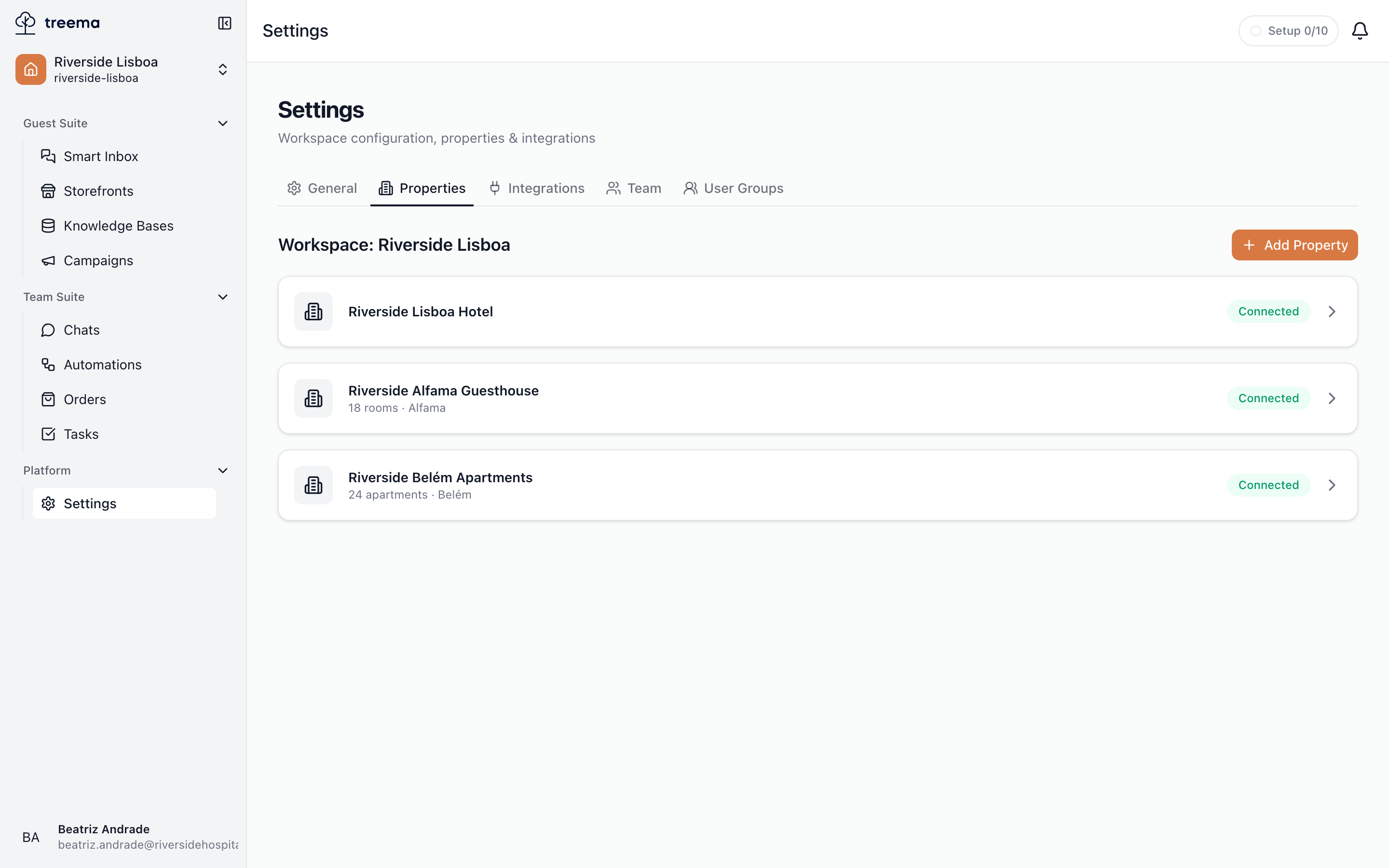
The Properties tab is where a workspace's properties are created and renamed.
The list
- 1
- 2
- The workspace these properties belong to, and Add Property
- One card per property — name, description, and its status
The tab is headed "Workspace: name" — a reminder that these are the properties of the workspace you are currently in, not of the whole organization. Each property is a card showing its name, its description underneath if it has one, and a green Connected badge.
Adding a property
Press Add Property. The dialog is titled "Create Property" and has two fields:
- Property Name — required. Give it the name your team actually uses out loud, e.g. "Riverside Lisboa Hotel"; it appears throughout the app, in role assignments, channel scopes and property pickers.
- Description — optional, a short line shown under the name in this list.
Create Property saves it and confirms with "Property created".
Editing a property
Click any card in the list to open "Edit Property", the same two fields with a Save changes button. Renaming a property updates it everywhere it appears; nothing attached to it — conversations, tasks, permissions — is disturbed.
Properties cannot be removed from this tab. If you have stopped operating a venue, contact support@treema.ai.
When your plan runs out of properties
Each plan includes a number of properties. If adding one would go past that number, the property is not created and what happens next depends on who you are:
- Organization owners and admins get an "Upgrade your plan" dialog — "Your current plan (plan) does not allow this. Switch to a plan that includes more." — with a Go to billing button that takes you to where plans are switched. Switching takes effect immediately; see Balance and plans.
- Everyone else sees "You've reached your plan's limit. Contact your organization admin to upgrade." Your organization's owner or an admin has to make the change.
Who can change properties
The tab lists the properties where your role includes Sees property settings — all of them for the workspace's owner and admins. Opening a card for editing needs Changes property details and locations in that property; without it the card is read-only. The Add Property button needs Creates properties, a workspace-role permission, or owner or admin. See Roles for how these are given.