User groups
Naming a set of people once so you can assign work to the group instead of the person.
A user group is a named set of people — "Front Desk Team", "Housekeeping", "Night Shift" — that you can point work at instead of naming individuals. The tab describes itself as "Manage groups of users for assignment and access control."
Groups are worth the two minutes they take when the same handful of people keep coming up together. Assign a task to "Housekeeping" and it stays correct after someone joins or leaves; assign it to three names and you have to remember to fix it.
Creating a group
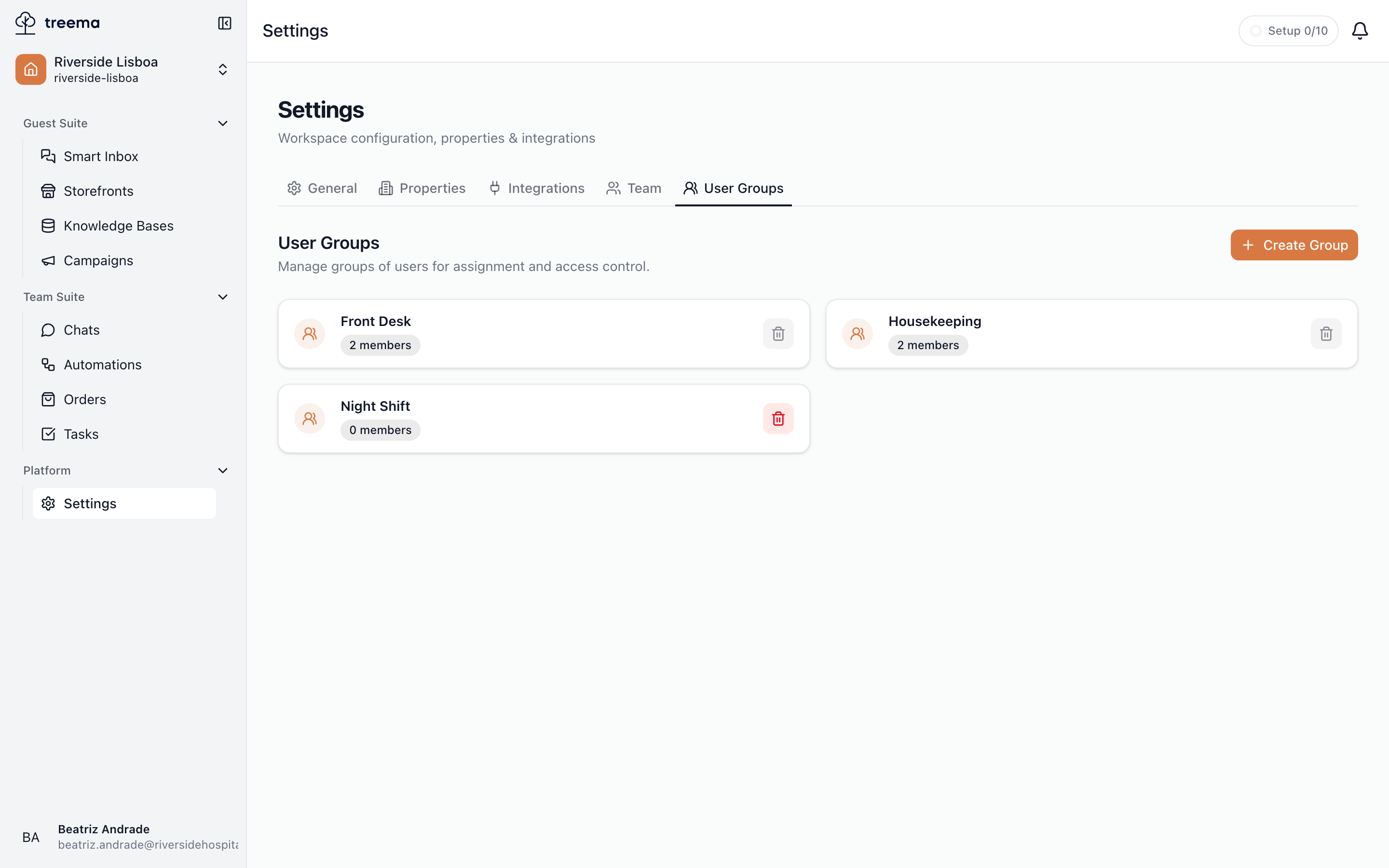
- 1
- 2
- What groups are for, and Create Group
- One card per group, with its member count and a delete button
The tab lists existing groups as cards, each showing its name, its member count and where the group belongs — the name of a property, or Whole workspace.
Create Group opens "Create User Group", described as "Create a group to manage access and assignments":
- Group Name — required, with "e.g. Front Desk Team" shown as a hint.
- Scope — where the group belongs: Whole workspace, or one property. A workspace with a single property doesn't ask — the group belongs to that property.
- Members — pick the people to start with. You can leave this empty and add them afterwards. A group that belongs to a property only offers the people who have access to that property; change the scope after picking someone who doesn't, and they are taken off the list with a note saying how many were removed.
Create Group saves it and confirms with "User group created".
Scope is chosen once
A group's scope is fixed when you create it — it isn't editable afterwards. A group that belongs to a property can only be assigned to work on that property; one for the whole workspace can be assigned anywhere. Picked the wrong one and you'll have to delete the group and create it again, so it's worth a second look before you press Create Group.
Editing a group
Click a group's card to open it. From there you can rename it under Group Name, and manage Current Members (n). Scope sits under the name — the property the group belongs to, or Whole workspace — and is shown for reference only; it can't be edited.
- Add Users opens "Add Members" — "Select users to add to this group" — where you tick people and press Confirm. For a group that belongs to a property, only the people with access to that property are offered.
- The button on a member's row removes them from the group. It only removes them from the group; their account and their permissions are untouched.
Save Changes commits both the name and the membership. Back to User Groups returns to the list.
Deleting a group
The delete button on a group's card asks "Are you sure you want to delete name? This action cannot be undone."
Empty the group first
A group with members in it cannot be deleted — the delete button explains why when you hover it: "Remove all members before deleting". Open the group, remove everyone, then delete it.
Groups are not permissions
Adding someone to a group does not grant them anything. What a person may see and do is set entirely by their roles, on their own page on the Team tab; a group is a label for routing work, not a way to hand out access. Someone added to "Housekeeping" whose roles do not include Sees tasks still cannot open the tasks assigned to it.
Who can manage groups
Creating, editing and deleting a property's groups needs Manages departments in that property; workspace-wide groups need Manages workspace departments, a workspace-role permission. The workspace's owner and admins can do both. The tab itself opens for anyone with Sees property settings as well, to look but not change. See What's in Settings for the tabs.