General
The workspace's default timezone, and what it actually affects.
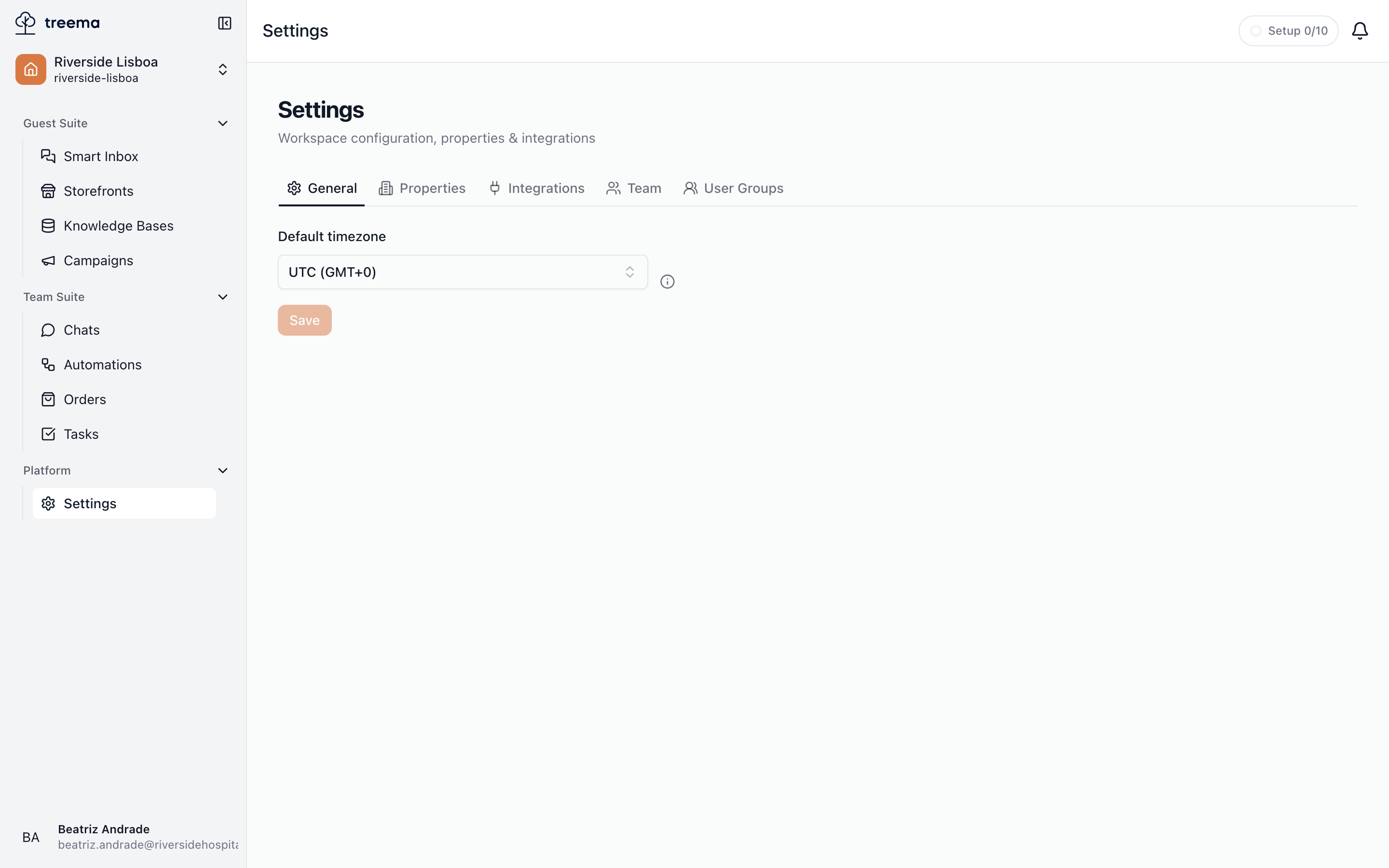
The General tab holds one setting: the workspace's default timezone.
Default timezone
- 1
- Default timezone — pick a zone, then Save
A Default timezone dropdown listing common timezones by city with their current offset — for example "Lisbon (GMT+1)" — followed by a Save button. Pick a zone and press Save; the button stays disabled until you have actually changed the selection, and reads "Saving…" while the change goes through.
The info icon beside the dropdown states the scope precisely: it affects only new recurring tasks. That is worth reading literally.
- Recurring tasks you create after the change use the new timezone.
- Recurring tasks that already exist keep the timezone they were created with. Changing this setting will not shift them, so a daily 09:00 housekeeping round stays at 09:00 in its original zone.
If you need an existing recurring task moved to the new timezone, recreate it after saving.
Not your display timezone
This is the workspace's default for scheduling, not a personal display preference. Everyone in the workspace shares it, and changing it does not restyle timestamps elsewhere in the app.
The dropdown covers the common zones plus whichever one the workspace is currently set to, so a zone already in use never disappears from the list.
The time you see everywhere else
Every other time in the app — when a task was created, when a message arrived, what the activity feed says happened at 14:05, a task's deadline — is shown on your own clock, the one your computer or phone is set to. There is no setting for it: it follows the device.
Where everyone works on the same site this never comes up, because all the clocks agree. It shows up the moment two people are in different countries. They are looking at the same moment — the message arrived once — but each reads it in their own hours, which is why a deadline agreed as "six o'clock" in a chat is worth writing down with the place attached.
The Recurring Tasks list is the one screen that works differently: Next and Last are shown on the schedule's own clock, because that is the clock it runs on. See Recurring tasks.
Who can change it
The General tab opens for the workspace's owner and admins, and for anyone whose workspace role includes Sees workspace settings. Saving a change needs Changes general workspace settings as well; with the first permission alone the tab is there to read and the Save button is unavailable. See Roles for how these are given, or ask your workspace owner or an admin.