Integrations
Connecting messaging channels for Smart Inbox and broadcast channels for campaigns.
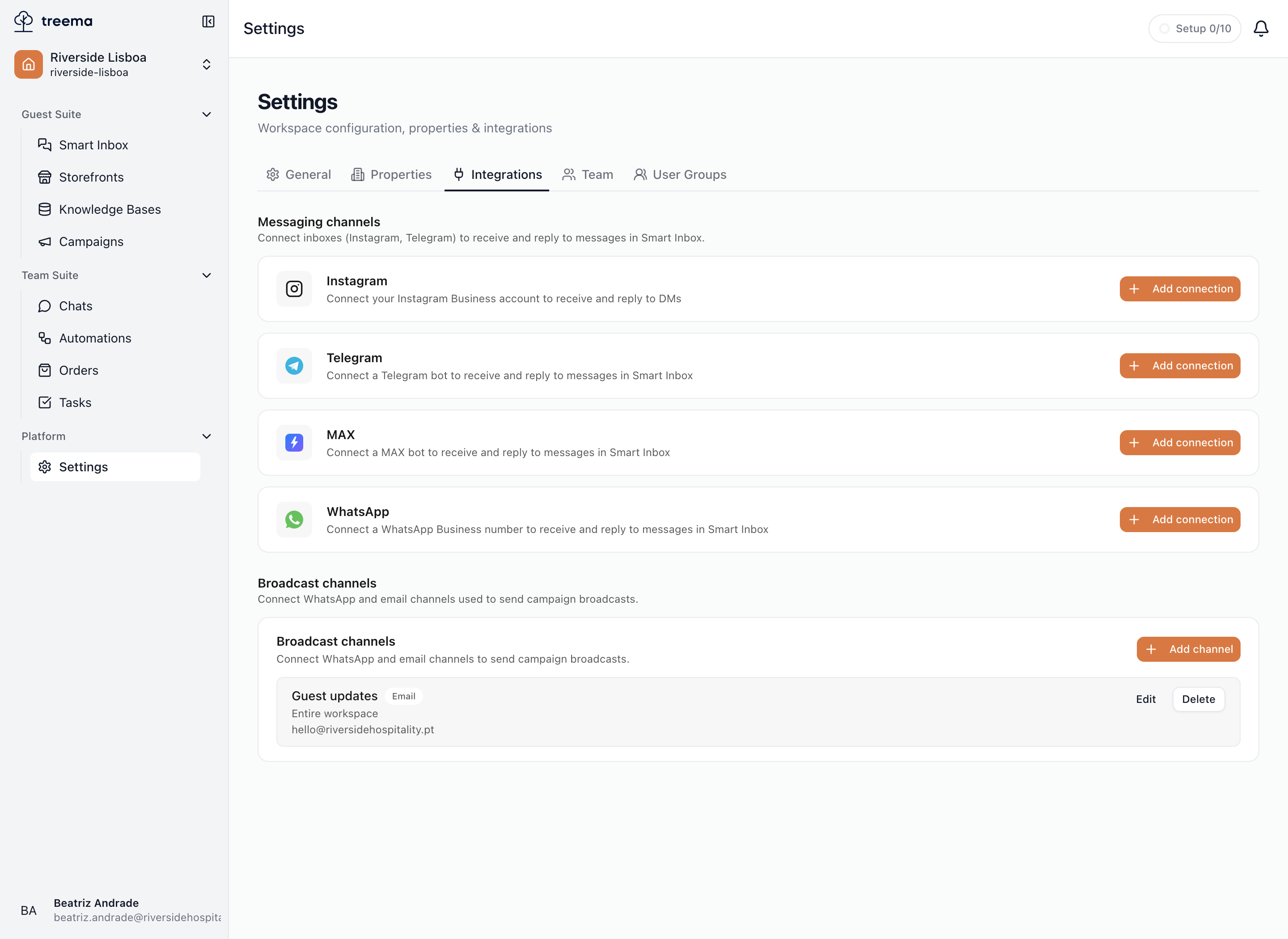
The Integrations tab connects the outside world to your workspace. It has two sections, and the difference between them is the direction messages travel.
- Messaging channels are inbound. They bring guest messages into Smart Inbox, where your team replies to them.
- Broadcast channels are outbound. They are what campaigns are sent through.
A channel connected in one section does not appear in the other. A WhatsApp number you have connected for the inbox is still selected separately as a broadcast channel before campaigns can use it.
- 1
- 2
- Inbound — the channels guests message you on
- Outbound — the channels campaigns are sent through
Messaging channels
The tab lists the channels available for guest conversations:
| Channel | What connecting it gives you |
|---|---|
| Instagram Business account DMs, answered from Smart Inbox. | |
| Telegram | A Telegram bot your guests message. |
| MAX | A MAX bot, the same idea as Telegram. |
| A WhatsApp Business number. |
Each channel can hold more than one connection, so a group running several venues can attach a separate Telegram bot or Instagram account to each.
Choosing where a connection lives
When you add a connection the first question is "Where should this channel be connected?" — and reconfiguring a connection later keeps the scope it was created with, so it is worth a moment:
- Entire workspace — "Conversations visible to all workspace members with inbox access." Right for a single shared account, like one brand Instagram covering every venue.
- A specific property — "Connect to this property only." Conversations arriving on it belong to that property, and only people with Smart Inbox access there will see them.
If your team is divided by venue and each venue has its own number or account, connect per property. Attaching everything to the workspace puts every conversation in front of everyone.
A workspace with a single property is not asked this at all — with one venue the two answers mean the same thing, so the question is skipped and you go straight to connecting.
Connected channels can be reconfigured — swapping in a new bot, reconnecting an expired authorization — or disconnected, which stops new messages arriving on them.
Broadcast channels
Broadcast channels is where you register the channels campaigns send through. Add channel asks for:
- Type — WhatsApp or Email.
- Name — how it appears when you pick a channel while building a campaign, e.g. "Main WhatsApp".
- Property — a single property, or Entire workspace.
- For WhatsApp, the connected number to send from. If none is connected yet, add it under Messaging channels above and come back.
- For Email, a From name and a From email — what recipients see in their inbox.
Each entry can be edited or disconnected later.
If WhatsApp stops sending
A WhatsApp connection can fall out of service — a revoked authorization, a number removed on the provider's side. When that happens the campaign form says "Your WhatsApp connection needs attention — reconnect it in Settings." and offers a Go to Integrations button. Reconnect it under Messaging channels; the broadcast channel itself needs no changes.
Who can manage integrations
The tab opens for the workspace's owner and admins, and for anyone whose role includes Sees property settings in a property or Sees workspace settings at workspace level — each sees the channels of the places their role covers. Connecting and changing a channel needs more: Connects property integrations for a property's channels, Connects workspace integrations for the workspace's. Both are marked sensitive on the Roles tab, and neither is in any preset except Hotel manager.